Admin: AI Settings
The AI Settings section is accessible only to Super Admins and exposes the internal agentic platform — the agents, tools, LLM providers, and job execution…
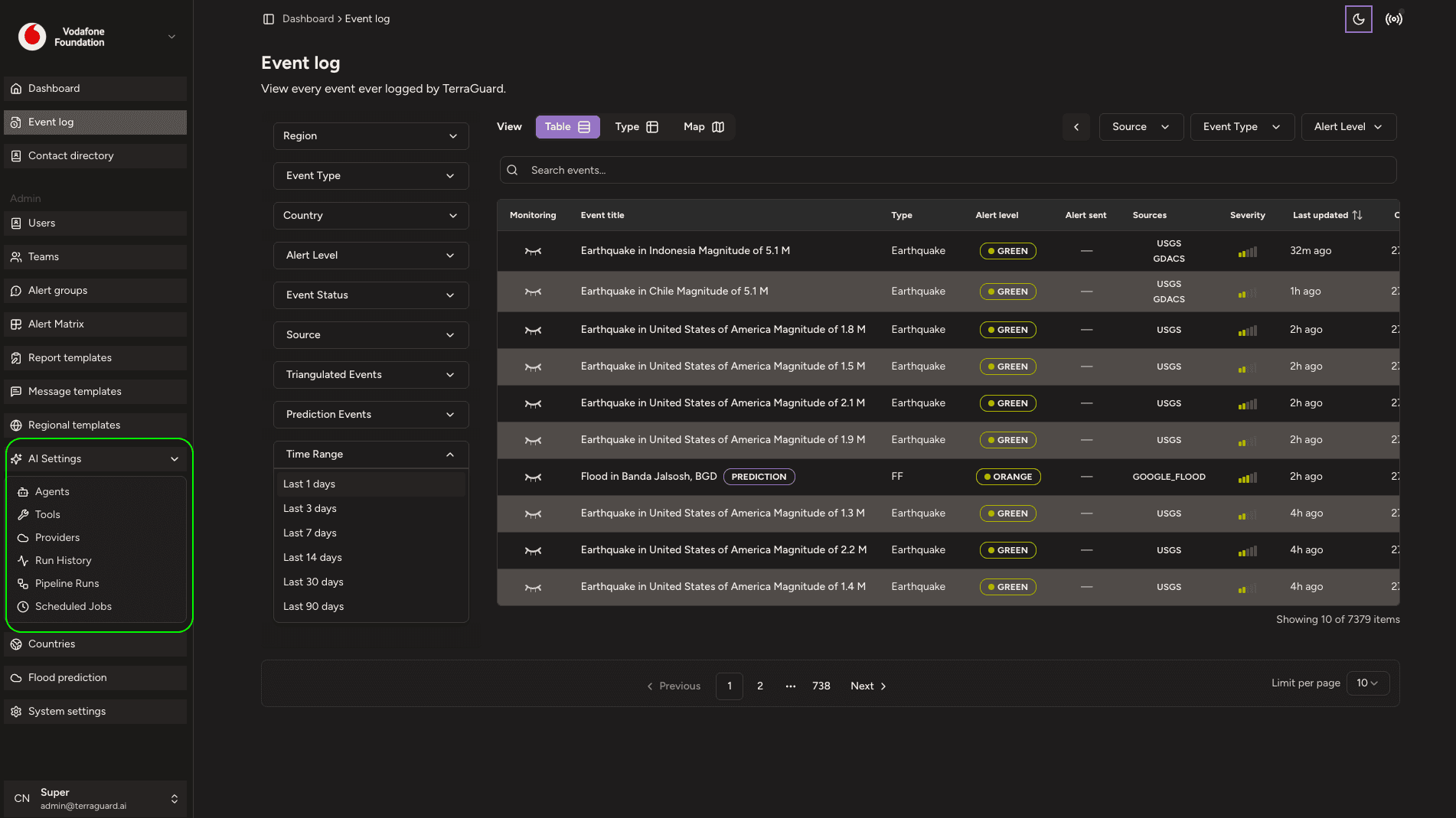
The AI Settings section is accessible only to Super Admins and exposes the internal agentic platform — the agents, tools, LLM providers, and job execution system that power TerraGuard's automated AI features. It is grouped into six sub-pages in the Settings sidebar.
AI Agents
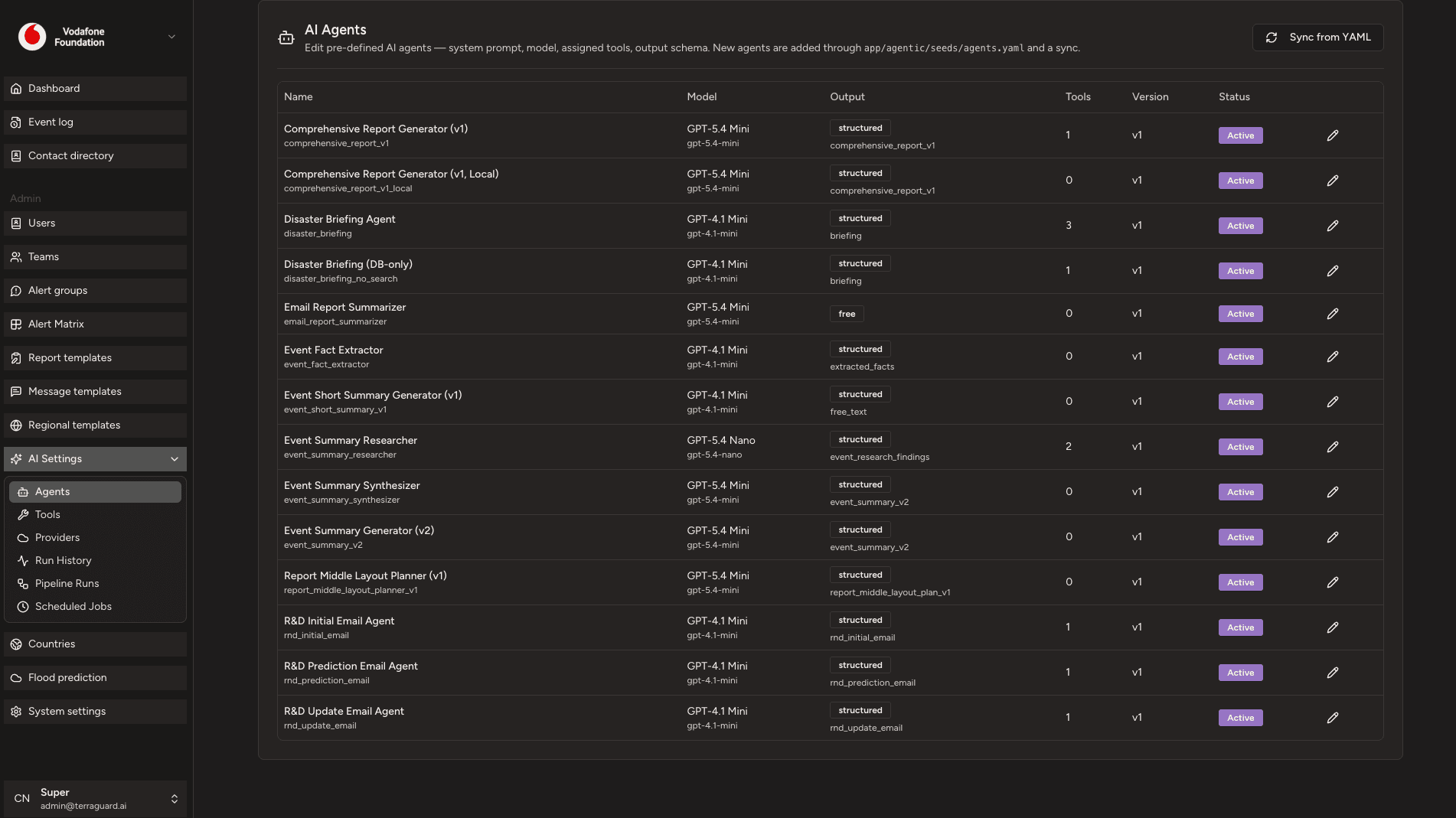
The AI Agents page lists all pre-defined AI agents used by the platform. Each agent has a system prompt, an assigned LLM model, a set of tools it can call, and an output schema. Clicking an agent opens its edit view where Super Admins can modify the system prompt, change the model, and adjust tool assignments.
New agents are added through the backend YAML seed files and a sync operation. To pull the latest agent definitions from the backend, click Sync from YAML on the AI Agents page.
AI Tools
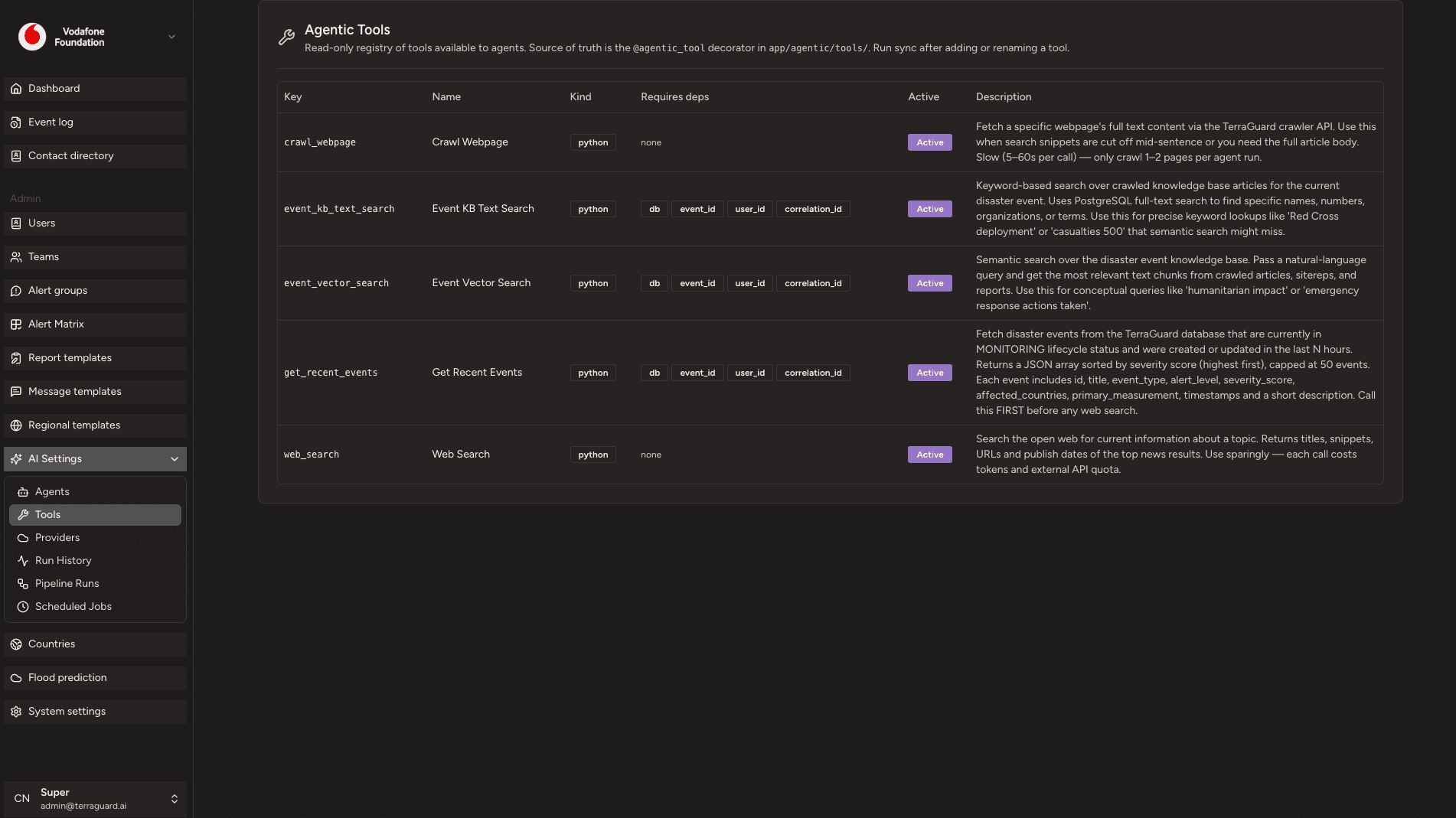
The AI Tools page is a read-only registry of all tools available to agents. Each entry shows the tool key, display name, kind, any required dependencies, active status, and a description of what the tool does. Tools are defined in the backend codebase using the @agentic_tool decorator and are synced into this registry.
AI Providers
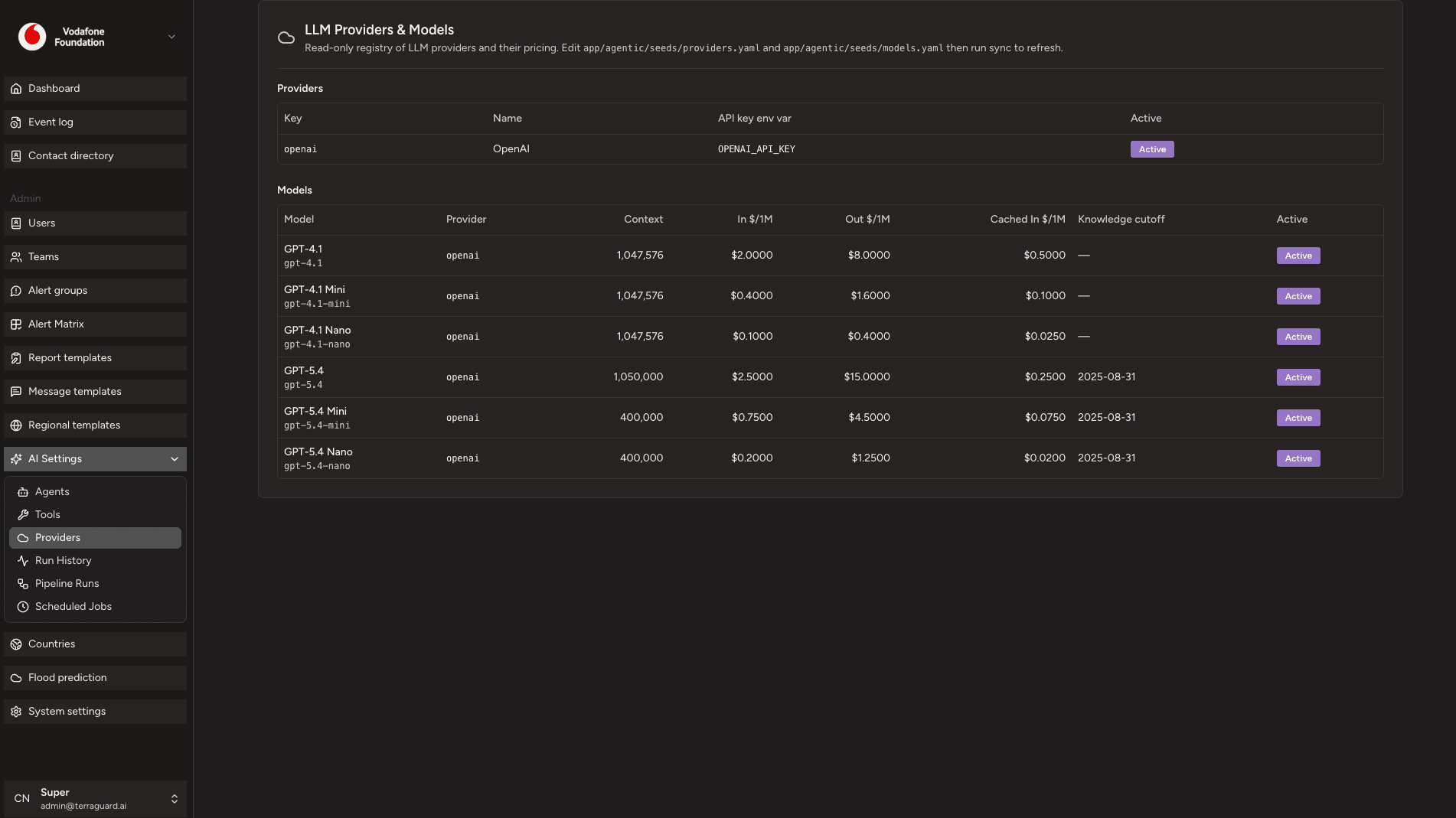
The AI Providers page is a read-only registry of LLM providers and their models. The Providers table shows each provider's key, name, API key environment variable, and active status. The Models table shows each model's display name, model ID, provider, context window size, input and output pricing (per million tokens), cached input pricing, knowledge cutoff date, and active status.
Provider and model definitions are maintained in backend YAML seed files. Run a sync to refresh this registry after adding or updating models.
AI Runs
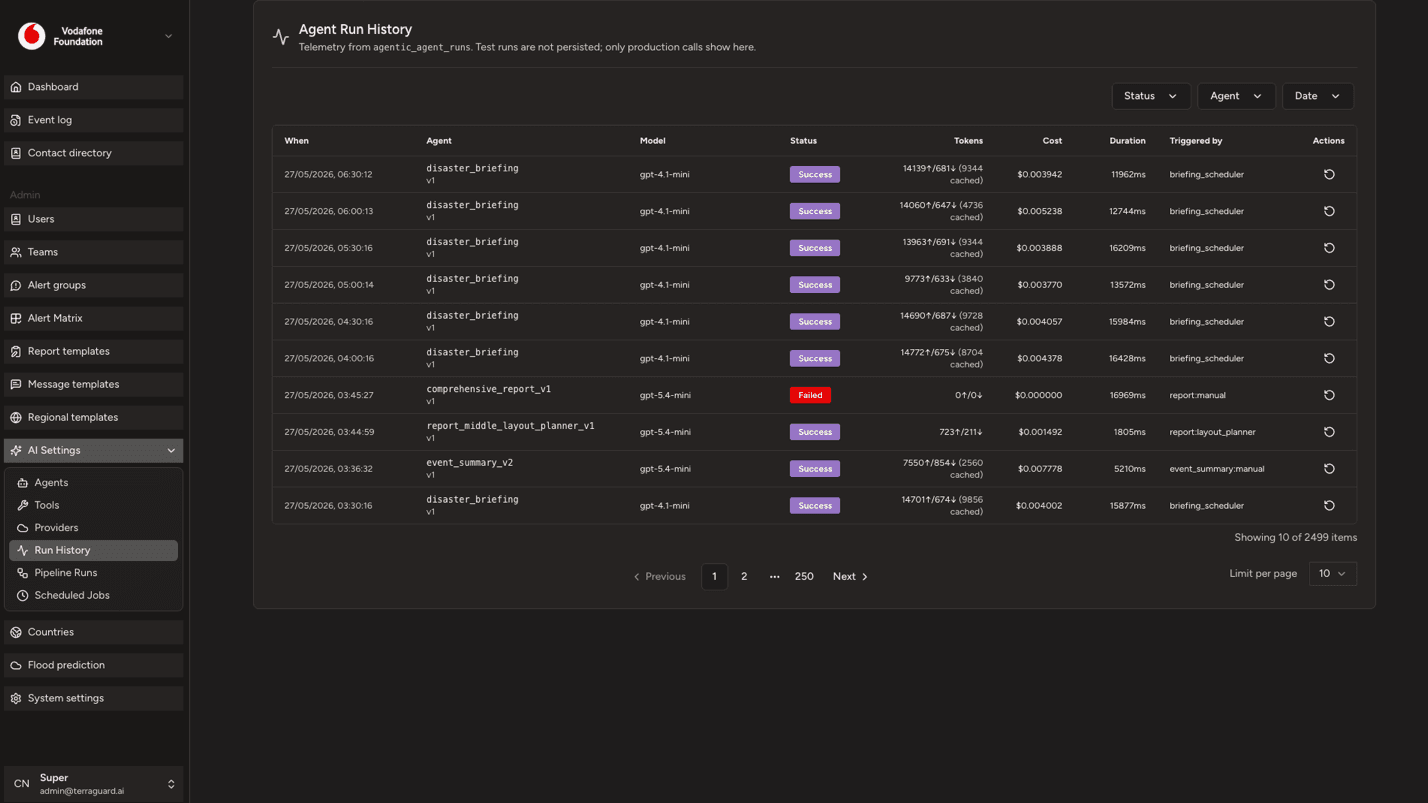
The AI Runs page shows the execution history of all AI agent runs in production. Each row displays the run ID, status, agent name, start time, and outcome. Runs can be filtered by status, agent, and date range. Failed runs can be retried directly from this page using the Retry button.
Pipeline Runs
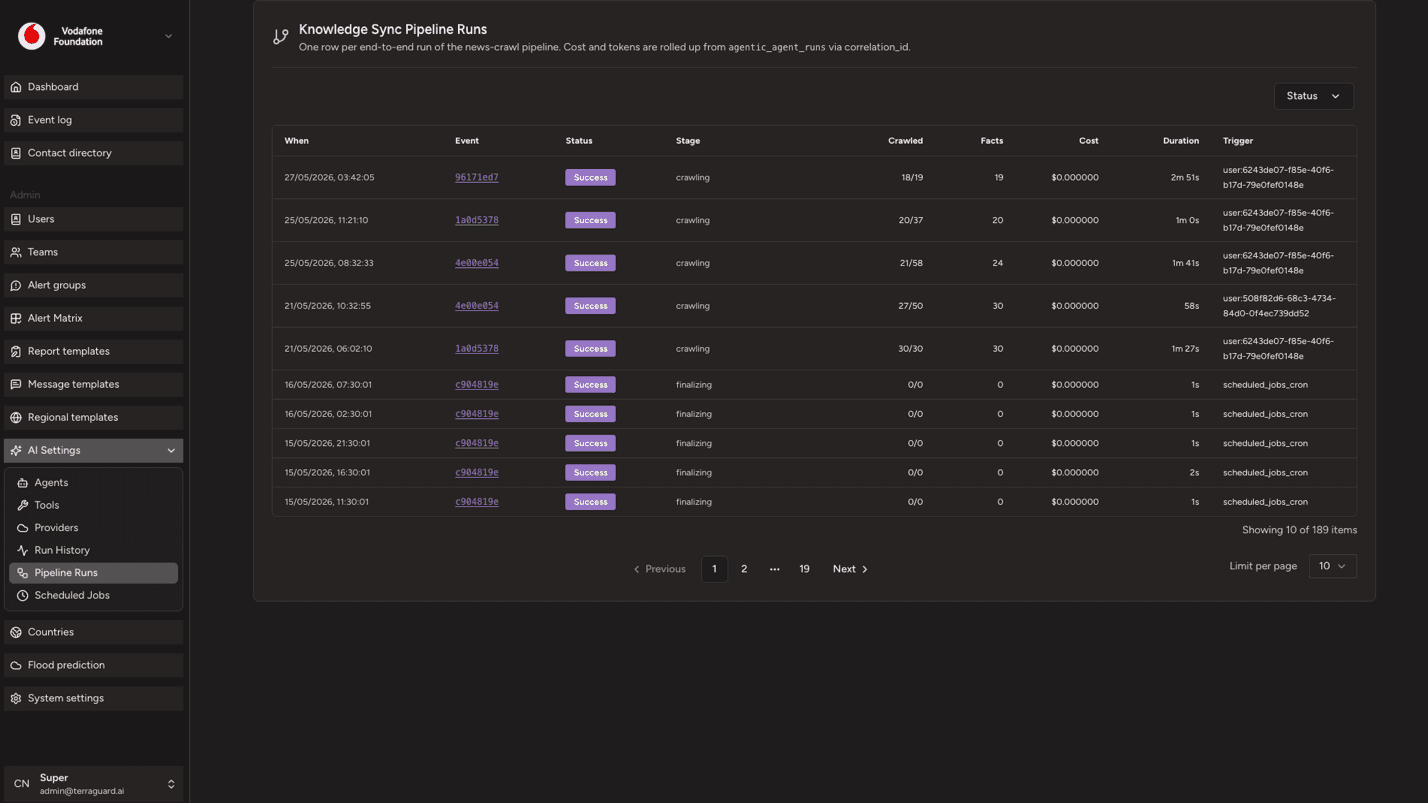
The Pipeline Runs page shows the execution history of multi-step AI pipelines. Pipelines are higher-level workflows that orchestrate multiple agent runs in sequence (e.g., the knowledge discovery pipeline: search → validate → crawl → embed). Each entry shows the pipeline name, status, start time, and outcome.
Scheduled Jobs
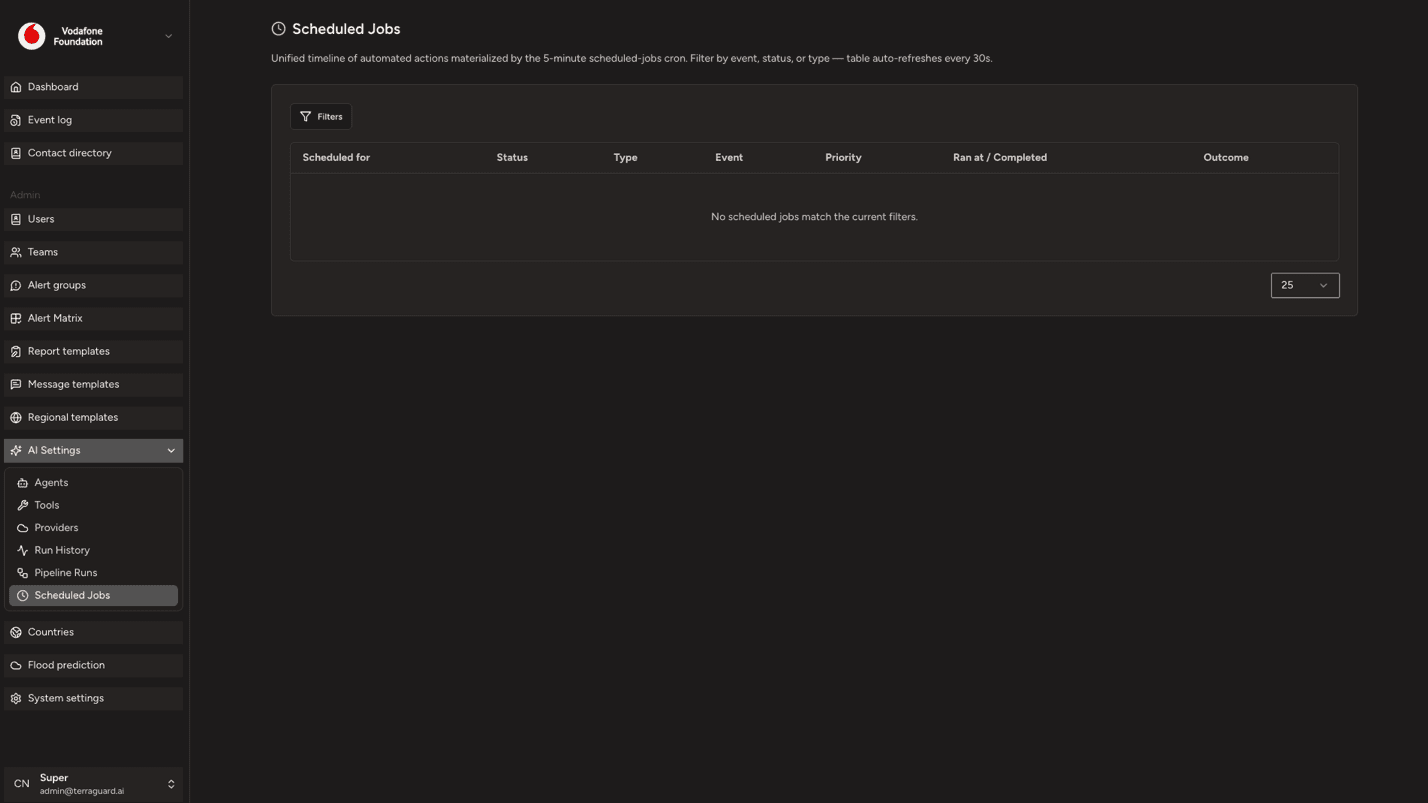
The Scheduled Jobs page provides a unified timeline of all automated actions created by the platform's scheduling system. Jobs are created automatically when events are ingested — for example, a RED earthquake generates jobs for news crawling, AI summary generation, and follow-up notifications at +2h, +12h, and +24h.
The table shows: Scheduled for, Status, Type, Event, Priority, Ran at / Completed, and Outcome. The table auto-refreshes every 30 seconds. Job types include:
- Update Notification — scheduled follow-up alert notifications
- News Crawl — automated web search and knowledge base indexing
- Report Generation — automated report creation
- AI Summary — automated event summary generation
Use the Filters sidebar to narrow by event, time range (upcoming / past / all), status (pending, running, completed, failed, cancelled, skipped), and job type.
Admin: Region Templates
Region Templates allow you to define custom geographic scopes that can be attached to the Alert Matrix. They let you apply alert rules to a defined set of…
Admin: Countries
The Countries page allows Managers and Admins to configure country-level partnership settings, deployment likelihood, and contacts for their organisation.…