Admin: Users
The Users section allows administrators to manage platform user accounts, including inviting new members, assigning roles, and deactivating accounts.
The Users section allows administrators to manage platform user accounts, including inviting new members, assigning roles, and deactivating accounts.
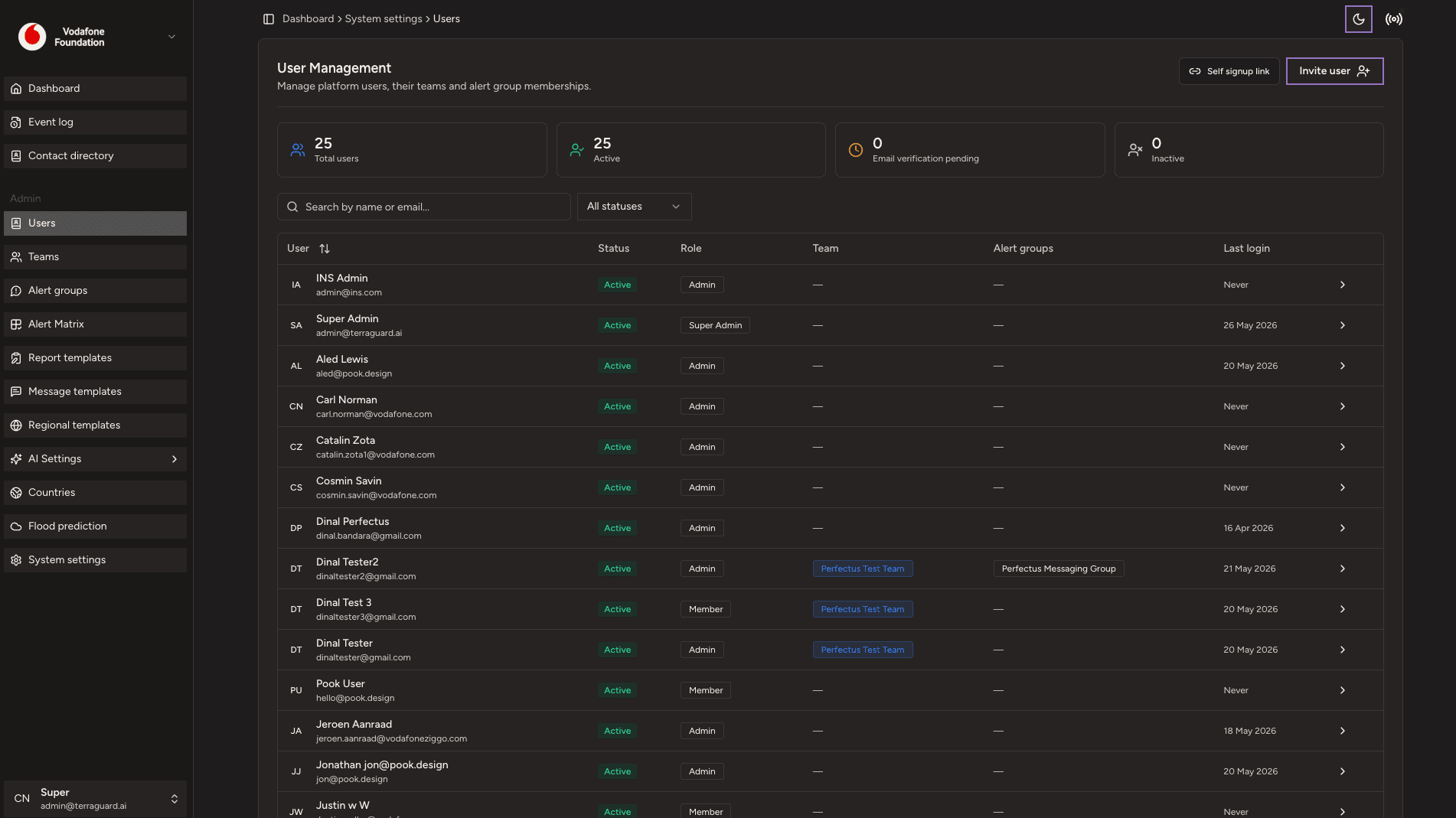
Viewing Users
The Users page lists all registered platform users with their name, email address, role, and account status. Users are authenticated through Clerk with Google sign-in.
Member Roles
Roles are assigned at the organisation level. A user can belong to multiple organisations with different roles in each:
- Admin — Full access: manage members, teams, matrices, settings, and all platform features.
- Manager — Manage teams, configure matrices, generate reports, send notifications.
- Member — View events, access knowledge base, use AI features, receive notifications.
- Viewer — Read-only access to events and reports.
Inviting a New User
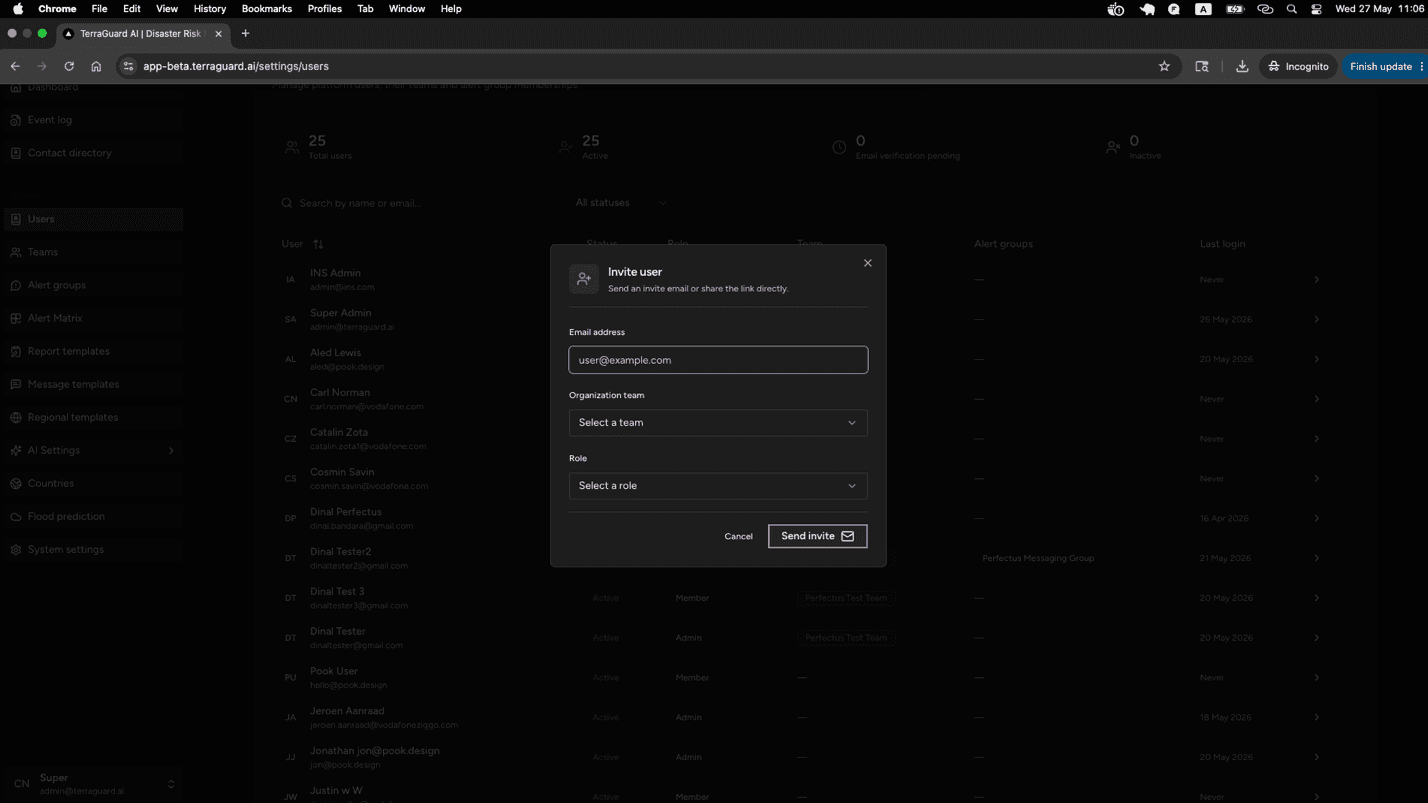
To invite a new user:
- Click Invite User.
- Enter the user's email address.
- Assign an appropriate role.
- Click Send Invitation. The user will receive an email to set up their account.
Editing User Roles
To change a user's role, click the edit icon beside their name, select the new role from the dropdown, and save.
Deactivating a User
To deactivate a user account, open the user record and toggle their status to Inactive. Deactivated users cannot log in but their data is retained.
Accepting an Invitation as a New User
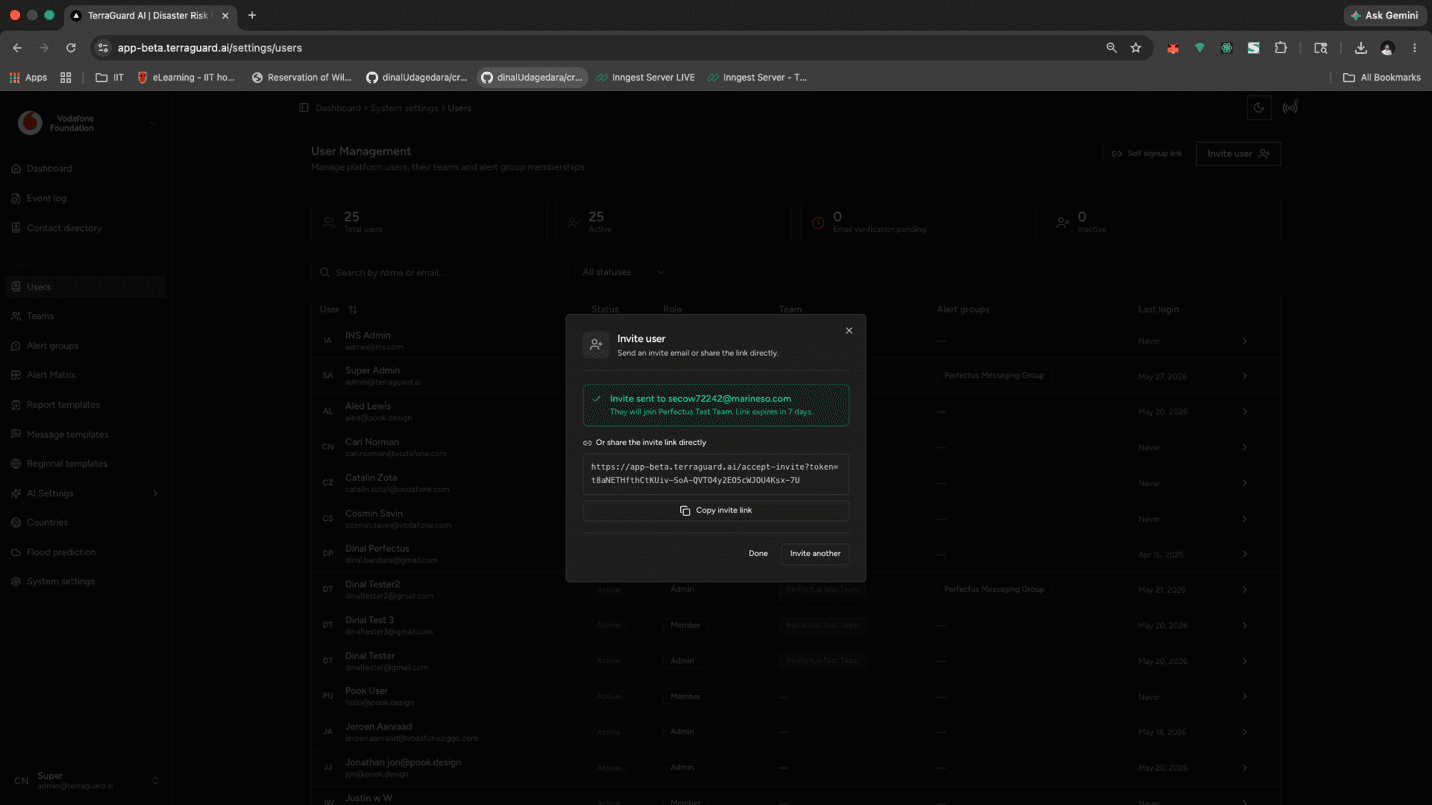
After sending an invitation, You can also copy the invite link directly and send it to the user.
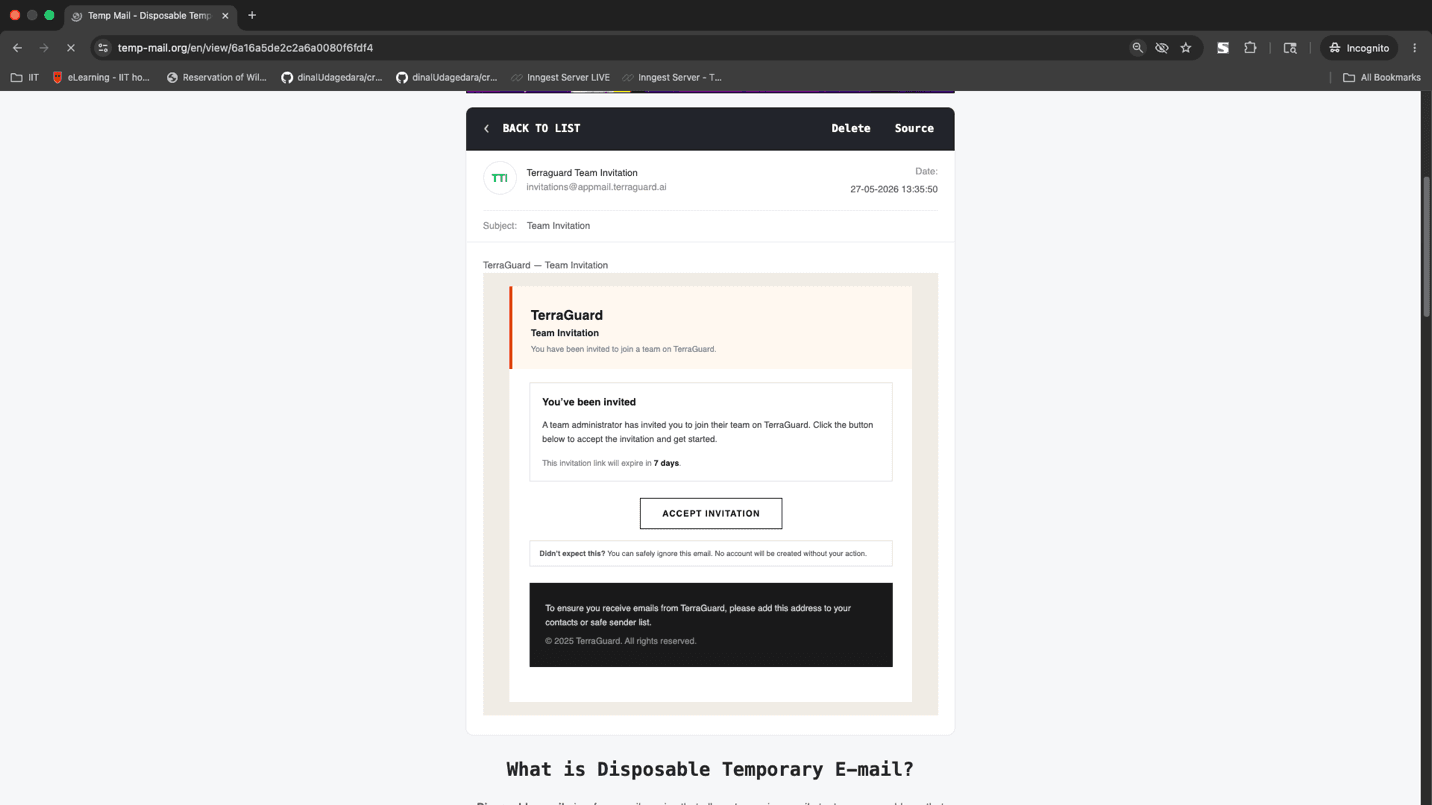
The invitation email looks like this, with an “Accept Invitation” button that links to the platform with the invite token.
When the button is clicked it takes the user to the invitation acceptance page. The page renders differently based on the user’s status: 1. New user (not yet registered) — the user must register first. After registering they are automatically logged in and redirected to the platform.
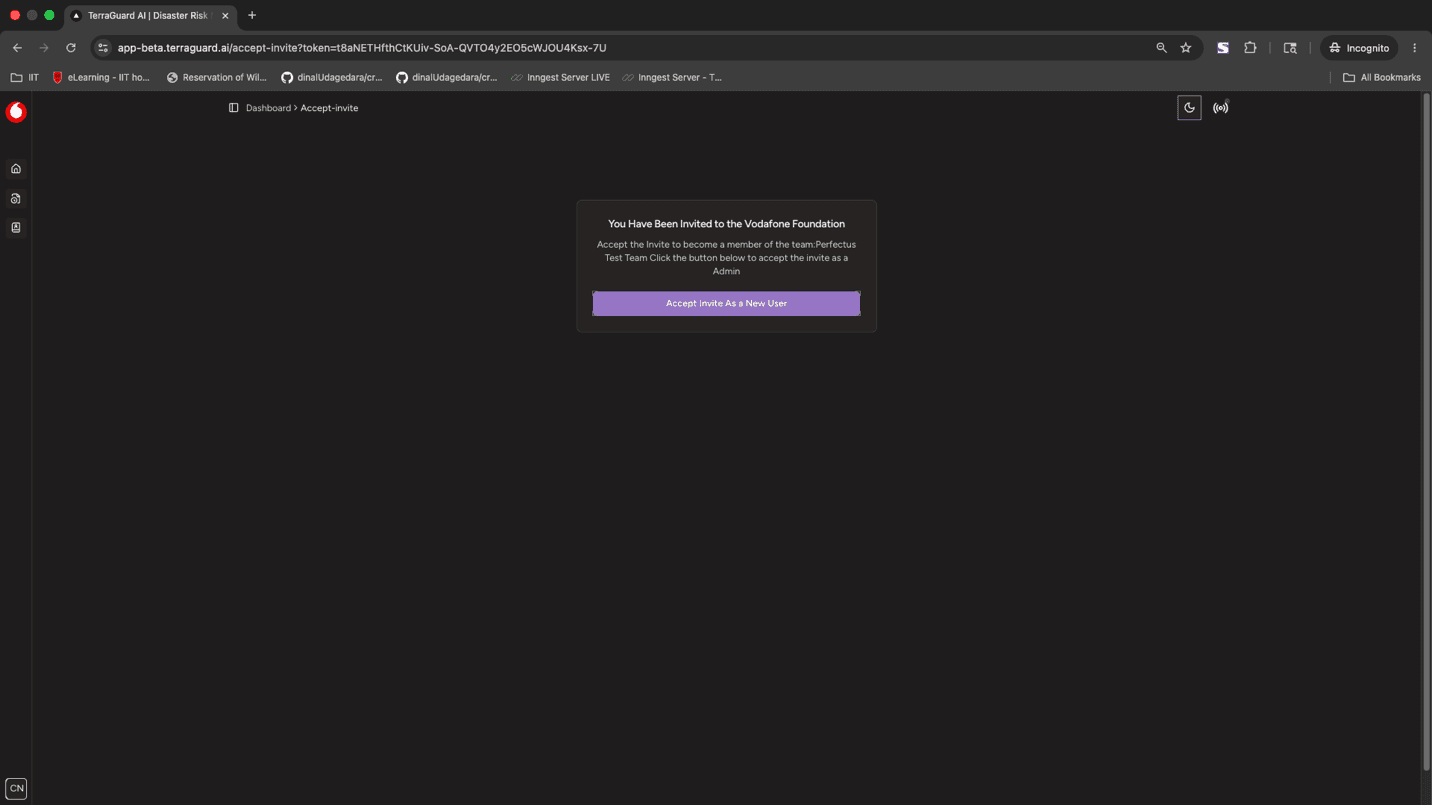
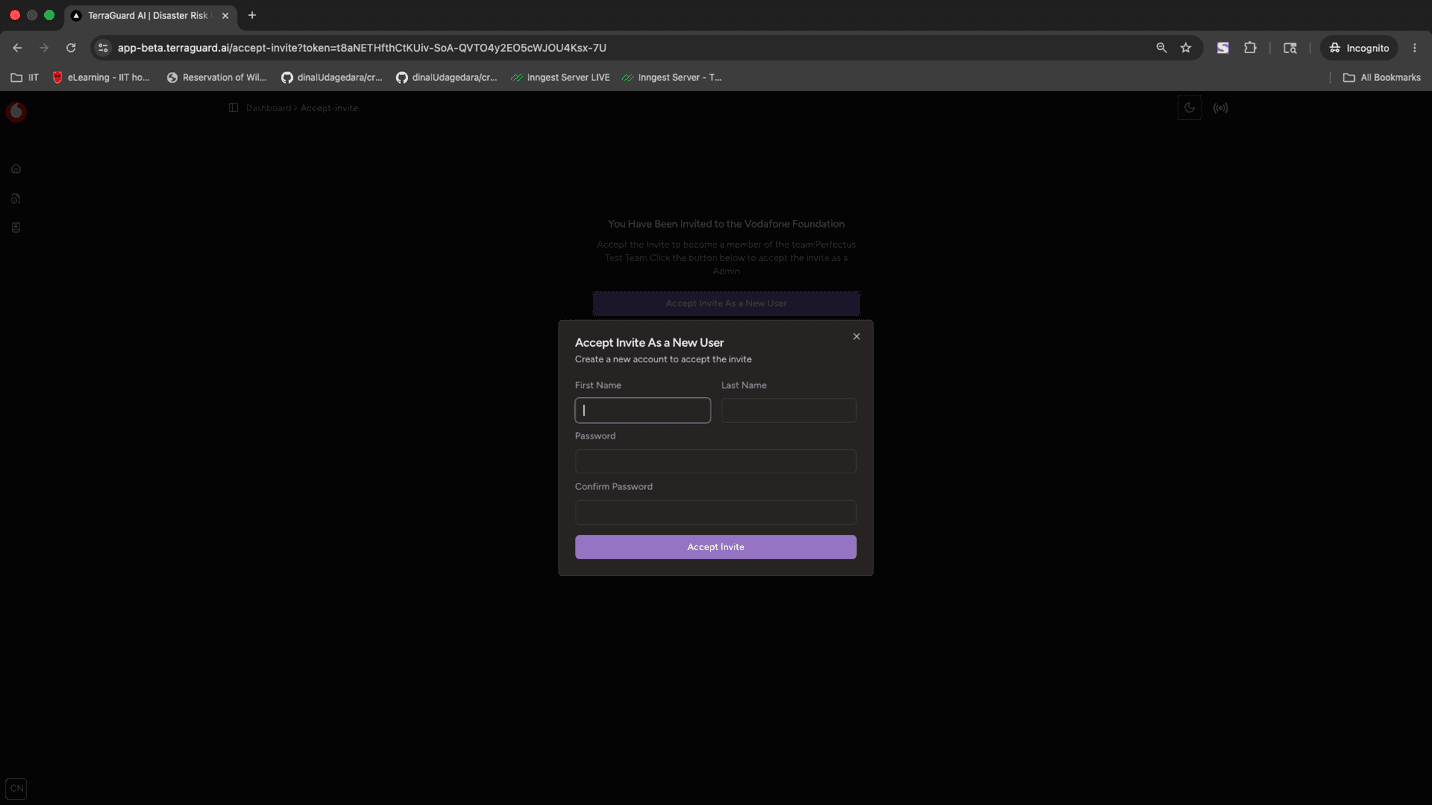
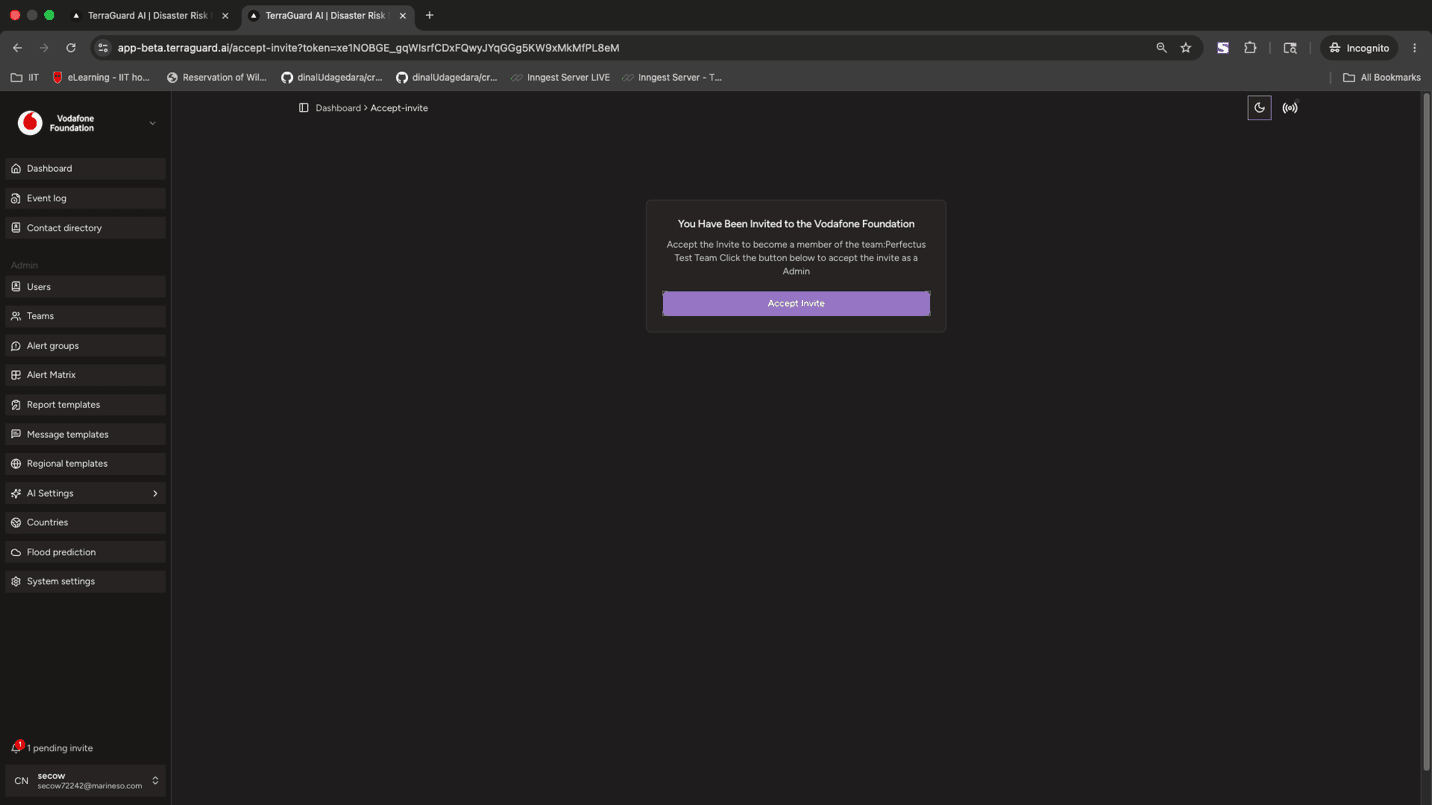
- Existing registered user — the user sees a direct “Accept Invitation” button and is immediately assigned to the team.
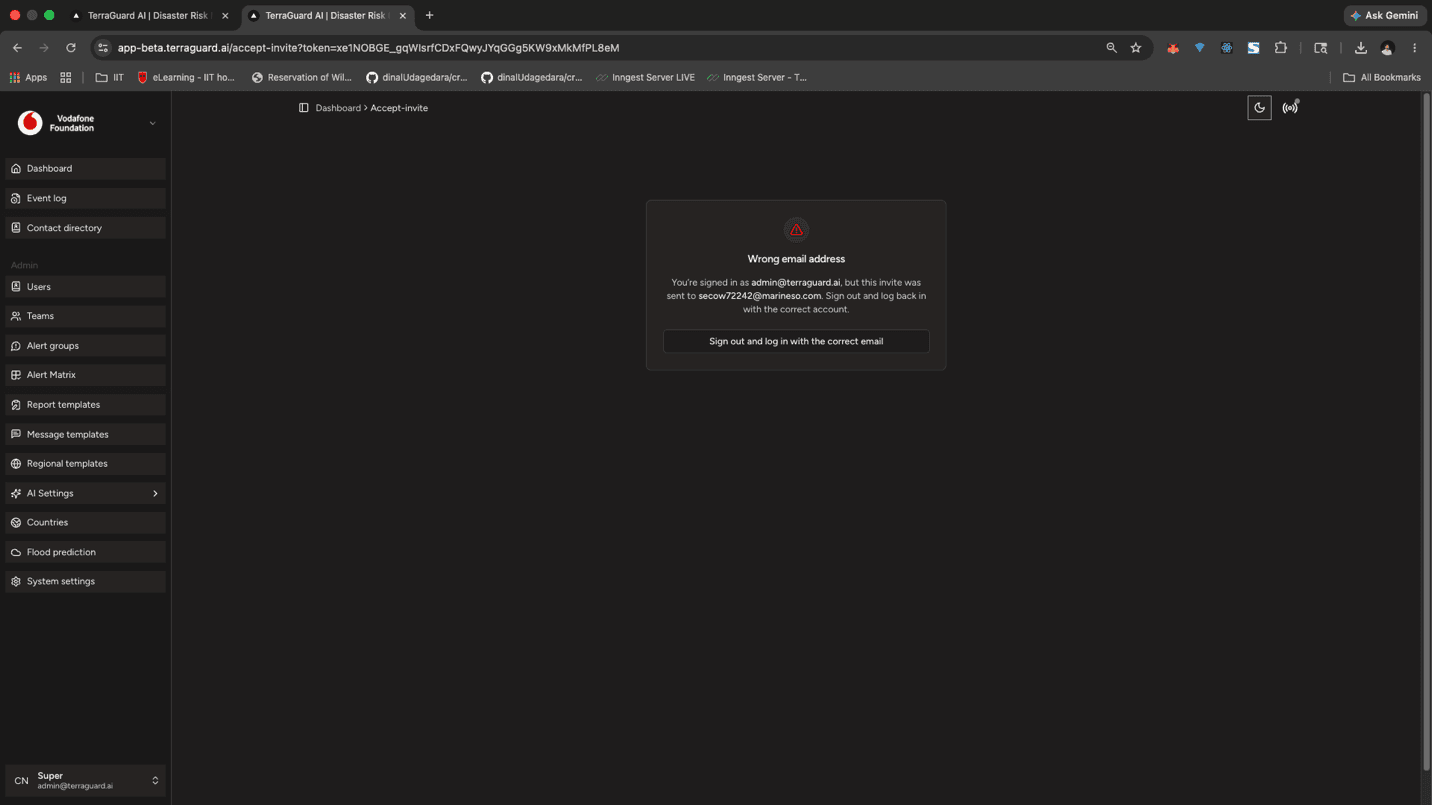
If the user is already logged in with a different account and tries to claim an invitation sent to another email address, the platform will show a mismatch warning. The user must sign out and log in with the correct email address.
After signing in with the correct account, any pending invitations appear in the left sidebar so the user can accept them directly.
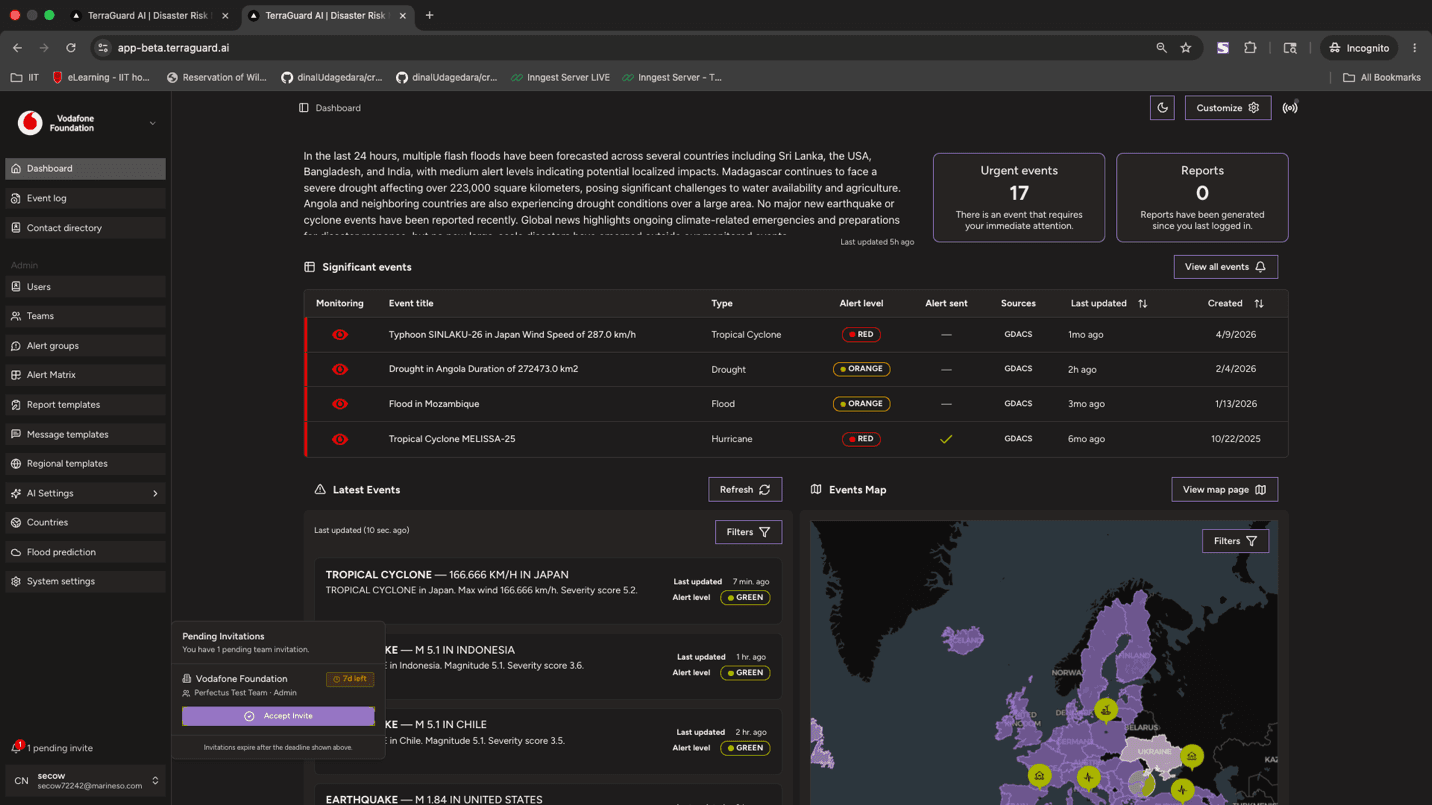
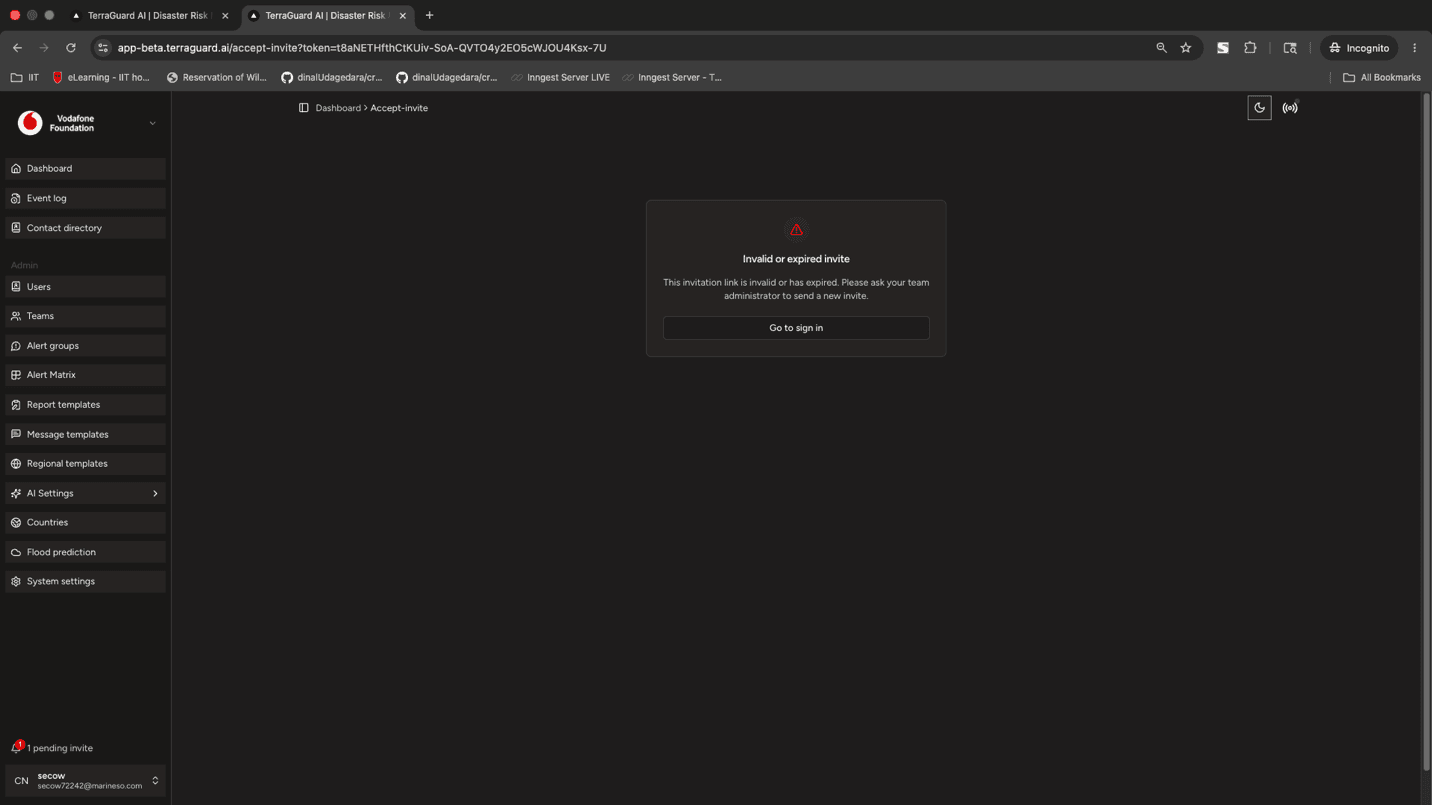
If the user tries to use an already-accepted or expired invitation link, the platform displays a clear error message.
Contact Directory
The Contact Directory stores the details of individuals and organizations who can be contacted in relation to an event. Contacts are added in two ways:…
Admin: Teams
Teams are groups within an organisation that share notification preferences and operational focus. Each team has its own set of notification channels,…